

What is eSIM? How to set it up on iPhone and Android
No tray, no tiny card, no paperclip. eSIM is how most new phones in the US connect now, and setup takes a few minutes.
Guide
Switching to iPhone takes about an hour, most of it waiting. Here's what moves on its own and what you'll do by hand.
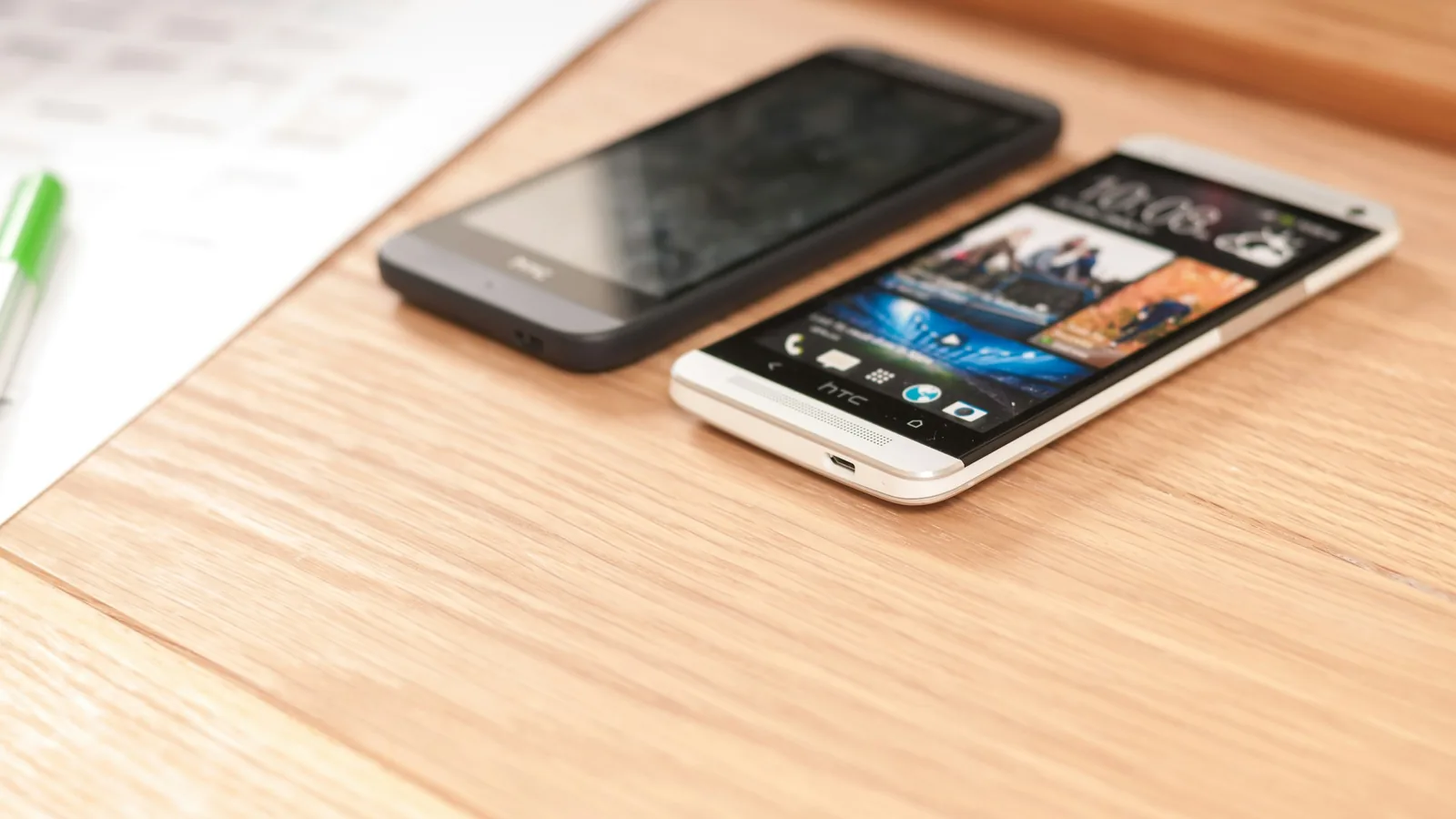
Apple’s Move to iOS app copies most of your Android phone to a new iPhone during setup. The steps below follow Apple’s guide (Apple Support).
Move to iOS does a good job with the things people worry about most: photos, messages and WhatsApp. Plan for an hour with both phones plugged in, and don’t touch them while it runs. The only real work afterwards is reinstalling apps and signing in again.
Prices checked on 2026-10-23.
No tray, no tiny card, no paperclip. eSIM is how most new phones in the US connect now, and setup takes a few minutes.
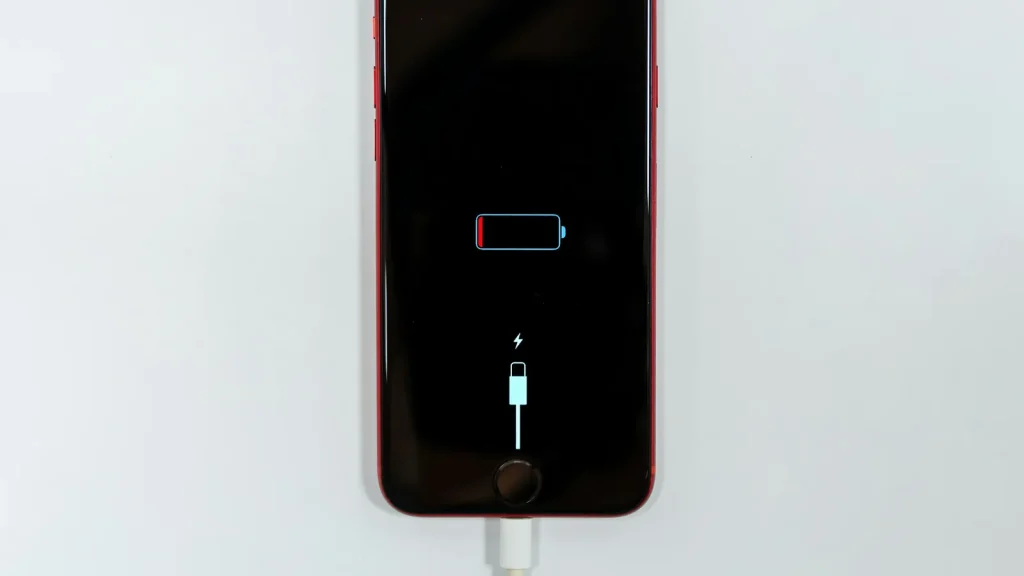
87% doesn't mean your battery is dying. Here's how to read Battery Health, according to Apple.
Android already has a cleanup tool built in. Most people never open it.
Essential cookies keep DGTULS working and are always on. Optional cookies help us measure traffic and show ads. Accept, reject or choose which ones to allow. Learn more in our Cookie Policy, Privacy Policy and Terms of Use.
Your browser's privacy signal is on: ads personalization is off.
Your browser's privacy signal is on: ads personalization is off.
Keeps you signed in, protects forms, and stores this choice.
Counts visits with Google Analytics only after you allow it.
Used by ads and affiliate pixels if those scripts are turned on.
None found on the site.
Set by embedded players such as YouTube, if you load them.