
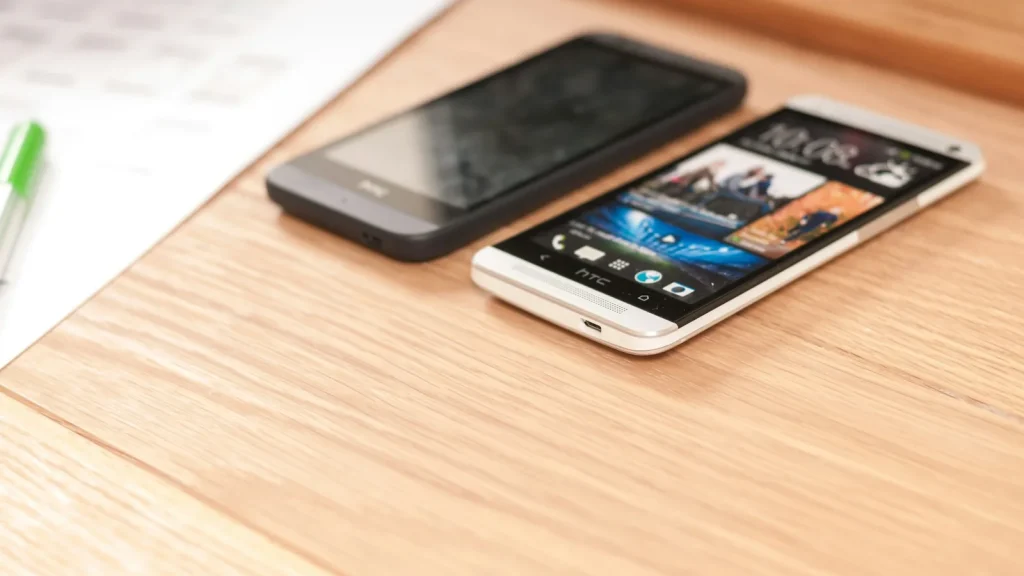
How to switch from Android to iPhone
Switching to iPhone takes about an hour, most of it waiting. Here's what moves on its own and what you'll do by hand.
Guide
Android already has a cleanup tool built in. Most people never open it.
Before you buy a cleaner app (please don’t), use the tools Android already has. The steps below follow Google’s guide for Android phones (Google Help). Menus vary a little by brand: on Samsung, look under Settings > Battery and device care > Storage.
Open Settings and tap Storage. Tap a category (images, videos, apps, documents) to see the biggest files.
In Settings > Storage, tap Free up space. Scroll to a category, tap Select files, choose what to delete, and tap Move files to Trash. If a category isn’t shown, tap Browse.
On the same screen, tap the Menu icon, then Settings, and turn on Smart Storage. Android will automatically remove photos and videos from the phone once they’re safely backed up.
If Google Photos backs up your library, you can remove the copies on your phone and still see everything in the app when you’re online. Check that backup is finished first: in Google Photos, tap your profile photo and look for “Backup complete.” Google’s free storage is 15 GB, shared with Gmail and Drive. See iCloud vs Google Photos storage if you need more.
In Settings, open the app’s storage page (the path varies by phone).
Settings > Apps, sort by size, and uninstall what you haven’t opened in months. You can always reinstall from Google Play.
Steps 2 and 3 do most of the work, and Smart Storage keeps the problem from coming back. Skip “phone cleaner” apps: Android already does what they promise, without the ads.
Prices checked on 2026-10-23.
Switching to iPhone takes about an hour, most of it waiting. Here's what moves on its own and what you'll do by hand.

No tray, no tiny card, no paperclip. eSIM is how most new phones in the US connect now, and setup takes a few minutes.
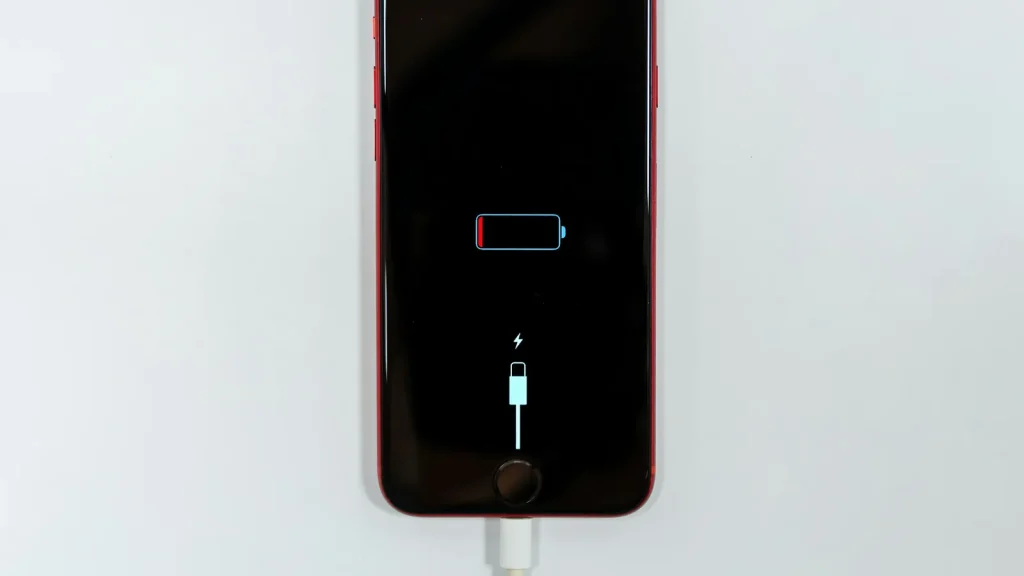
87% doesn't mean your battery is dying. Here's how to read Battery Health, according to Apple.
Essential cookies keep DGTULS working and are always on. Optional cookies help us measure traffic and show ads. Accept, reject or choose which ones to allow. Learn more in our Cookie Policy, Privacy Policy and Terms of Use.
Your browser's privacy signal is on: ads personalization is off.
Your browser's privacy signal is on: ads personalization is off.
Keeps you signed in, protects forms, and stores this choice.
Counts visits with Google Analytics only after you allow it.
Used by ads and affiliate pixels if those scripts are turned on.
None found on the site.
Set by embedded players such as YouTube, if you load them.